Why keep your list in a widget
A list that lives inside an app is easy to forget. You mean to check it, then you open something else. A widget keeps the next few tasks where you already look dozens of times a day, so remembering doesn’t depend on remembering to look.
What the widgets show
- Small: today’s open tasks and how many are left. Tap it to open FocusDo.
- Medium: the date, the count and your next three tasks, each with a checkbox.
- Large: up to seven lines, headings included, with checkboxes.
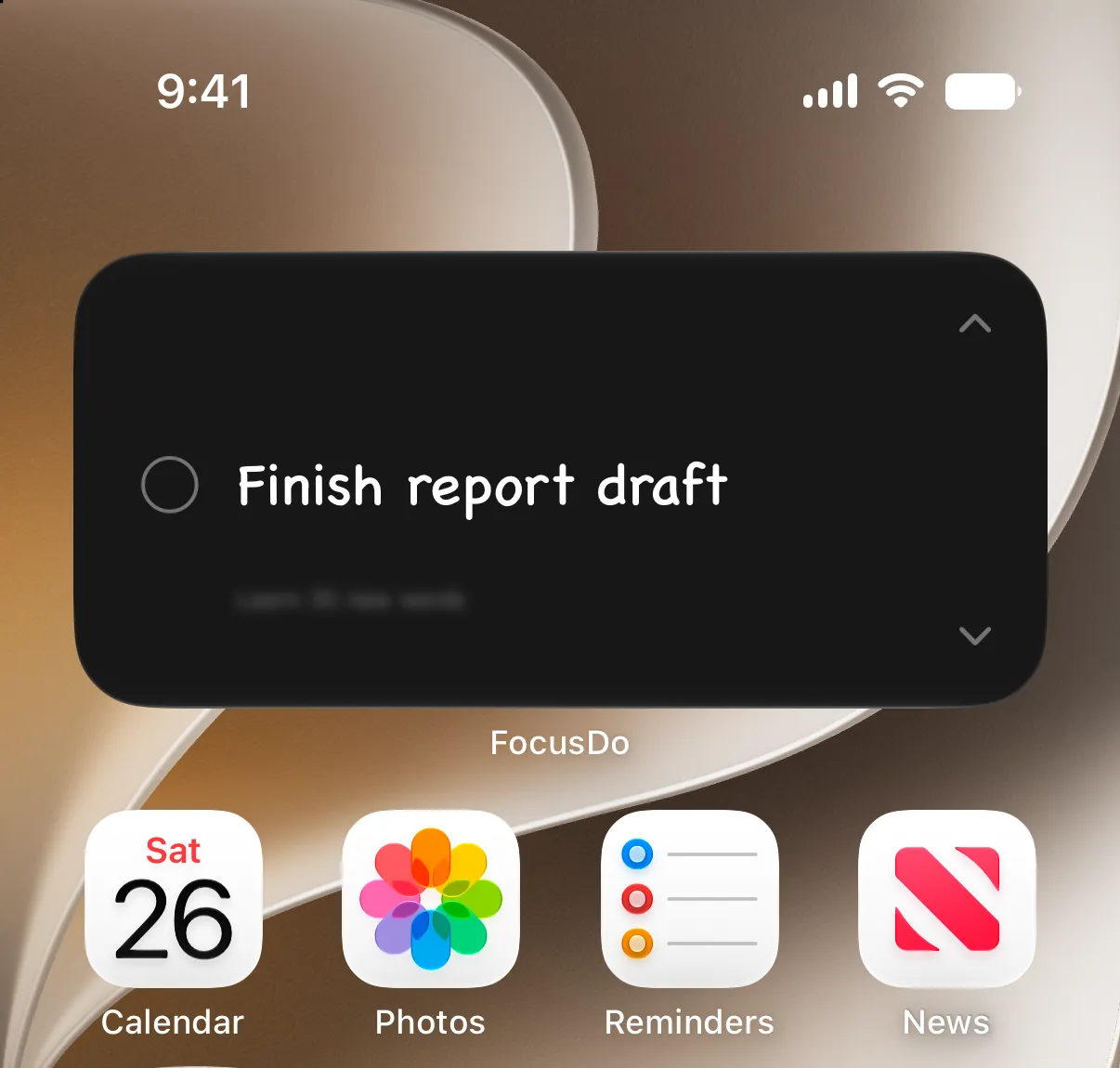
- Focus Wheel (Pro): a medium widget that shows only the task at hand. Switch up or down to another task, and tap the circle to finish it.
- Lock Screen: a rectangular widget with your next three tasks, or a round one that opens the app in one tap.
Check tasks off from the Home Screen
On the medium and large widgets, tap the circle next to a task to cross it off. It’s marked done in FocusDo too, and the next task moves up. Tap the task’s name instead and FocusDo opens.
Keep just one task on your Home Screen
The Focus Wheel widget is the Home Screen version of Focus Mode. Instead of a list, it shows the one task you’re on, and you switch up or down to reach the others. Tap the circle to cross it off and the next one moves into place. It’s a medium widget and part of Pro. To add it, follow the steps below and pick Focus Wheel.
How to add the widget to your Home Screen
- Touch and hold an empty spot on the Home Screen until the apps jiggle.
- Tap Edit in the top-left corner, then Add Widget.
- Search for FocusDo, swipe to the size you want and tap Add Widget.
- Drag it where you like, then tap Done.
How to put your to-do list on the Lock Screen
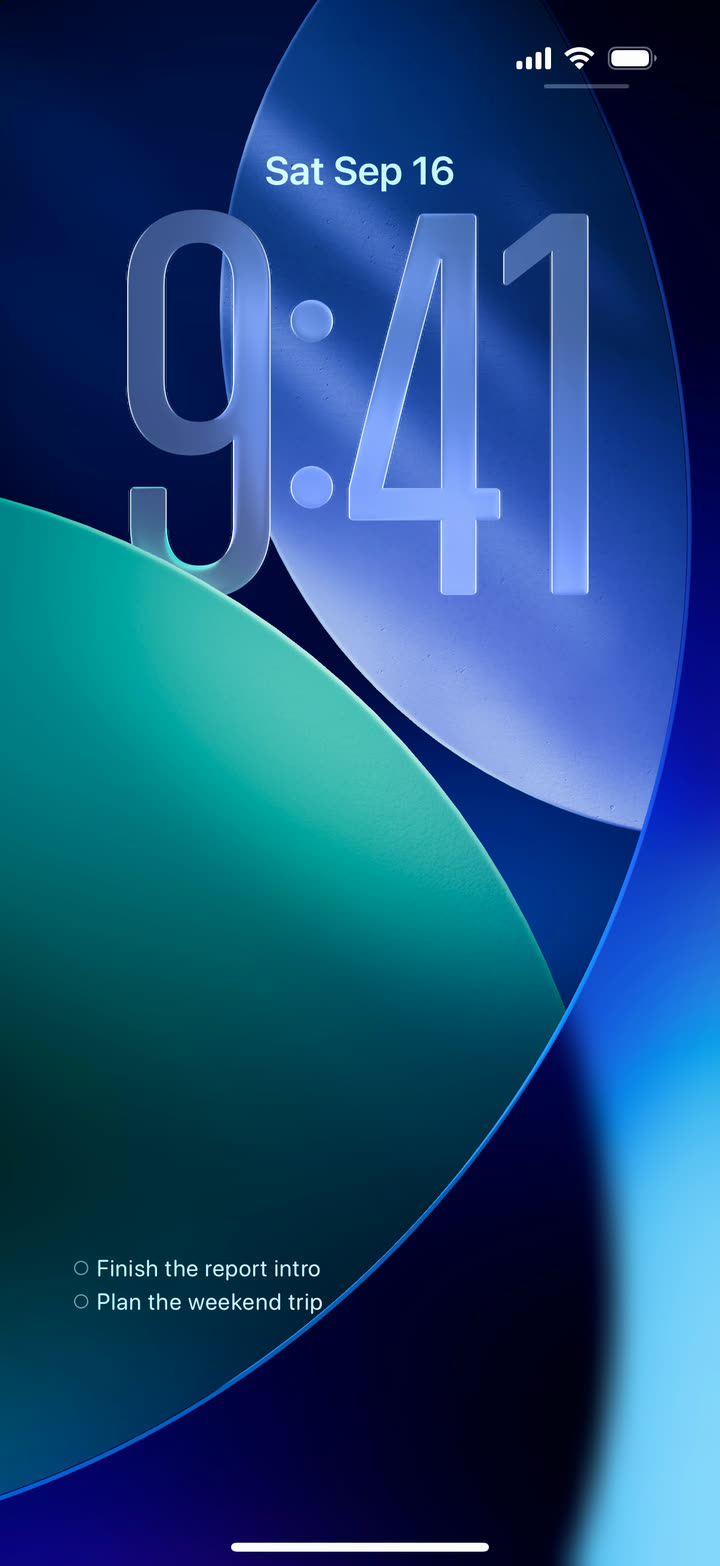
- Touch and hold the Lock Screen, then tap Customize (and Lock Screen, if asked).
- Tap Add Widgets, then FocusDo.
- Pick the rectangular widget to see your next three tasks, or the round one for a shortcut.
- Tap Done.
Check off tasks without unlocking
The Lock Screen widget shows what’s next, but tapping it opens the app. If you’d rather tick things off right there, turn on Lock Screen To-Do in FocusDo’s settings (Pro).
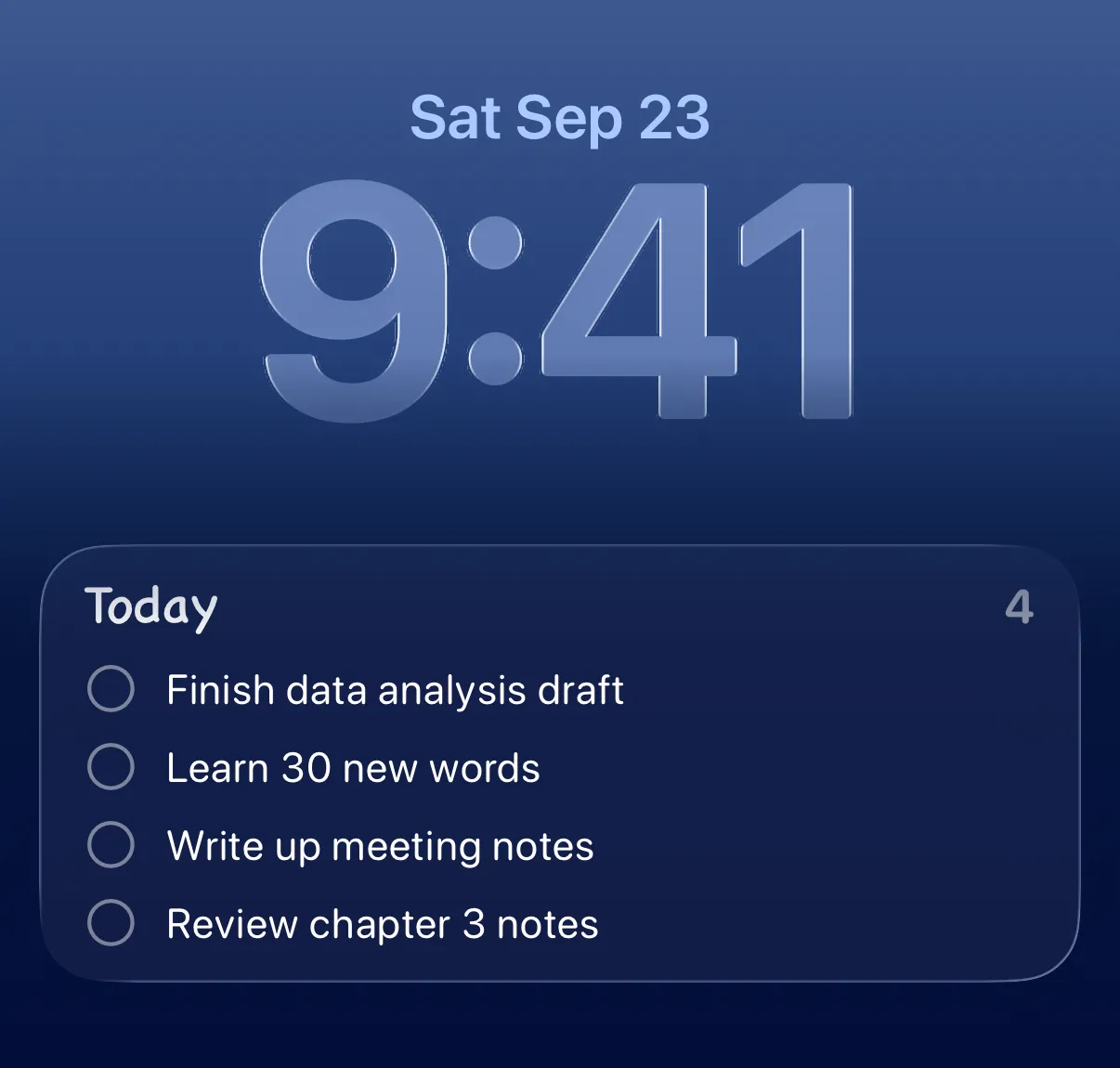
- Lock your iPhone or leave FocusDo from your list, and your unfinished tasks stay on the Lock Screen, up to four at a time.
- Tap the circle next to a task to check it off without unlocking. It’s crossed out, then disappears.
- When everything on the card is done, it says “All clear!” and goes away.
- On iPhones with a Dynamic Island, press and hold it to see the same list.
If you lock your phone during Focus Mode, the Lock Screen shows the eyes and the task you’re on instead of the list.
Widget or Dynamic Island?
They do different jobs. The widget is always there and shows what’s coming up. When you’re in Focus Mode and switch to another app, FocusDo also puts the task you’re on in the Dynamic Island and nudges you back every couple of minutes. More on that in the Dynamic Island to-do list.
If the widget shows more than you want to face right now, open FocusDo and tap Focus: it showsone task at a time and hides the rest.