How to Put a To-Do List on Your iPhone Lock Screen
Set up an iPhone Lock Screen to-do list, choose between a widget and an interactive checklist, and check what to do when your tasks don’t appear.
By Eric3 min read
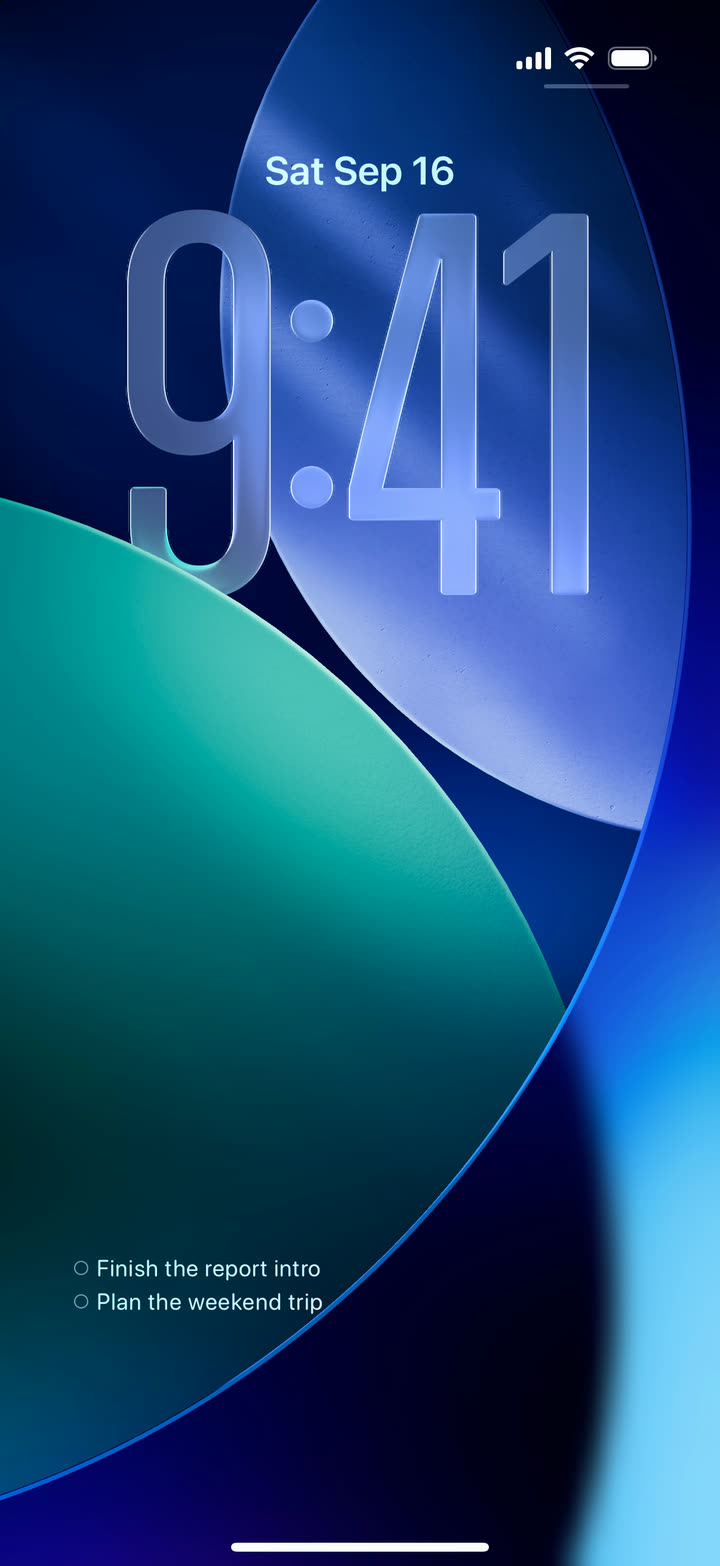
Putting tasks on your iPhone Lock Screen can mean two different things: a small widget you add to your wallpaper, or a Live Activity with a list you can check off. They use different settings. Adding one does not automatically turn on the other.
This guide uses FocusDo to show both options. If your tasks already live in Apple Reminders, you can also start with its widget; Apple explains the available interactions in its Lock Screen guide. You do not need to move your list just to try keeping it visible.
Choose the view you need
- A quick glance at upcoming tasks: use FocusDo’s free Lock Screen widget. Tapping it opens FocusDo.
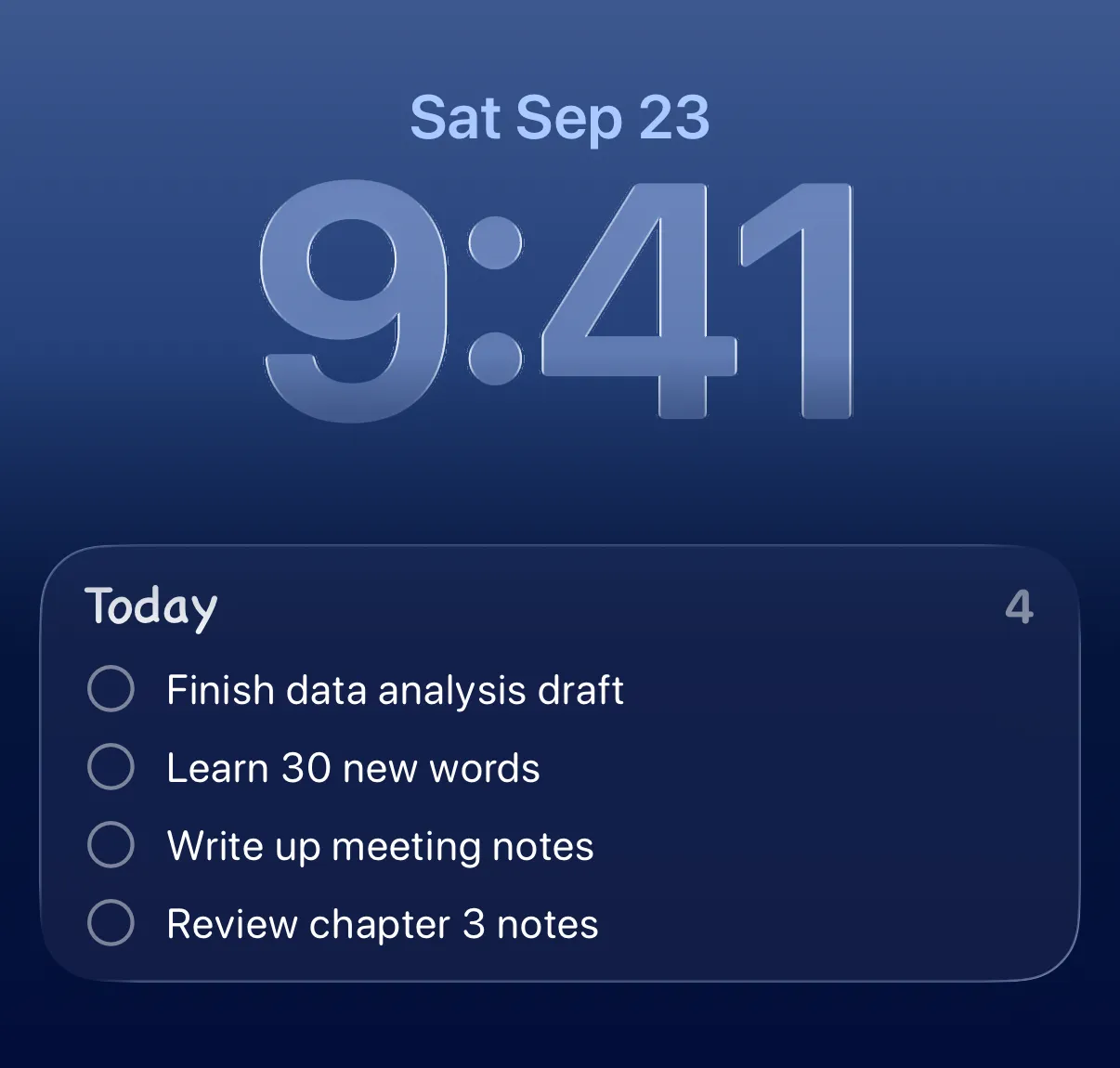
- A list with checkboxes on the Lock Screen: use Lock Screen To-Do, a Pro feature delivered as a Live Activity. It shows up to four unfinished tasks at a time.
- Only the task you are working on: start Focus Mode. When you leave the app or lock your phone, the activity shows that task instead of the checklist.
The widget feature page covers the different Home Screen sizes. The steps below focus on the Lock Screen.
Add the Lock Screen widget
- Install and open FocusDo, then add a few tasks.
- Press and hold your Lock Screen, choose Customize, and select the Lock Screen if prompted.
- Open Add Widgets, find FocusDo, and choose its rectangular list widget. The round option is an app shortcut.
- Close the picker and save with Done.
If the widget area is full, remove another widget before adding the list. These are the system steps described in Apple’s widget instructions; wording can vary with your iOS language.
Show a checklist you can check off
In FocusDo’s settings, enable Lock Screen To-Do with Pro. Return to your task list, leave at least one task unfinished, then leave the app or lock your iPhone. The checklist appears as a Live Activity; you do not add this card in the wallpaper’s widget picker.
Tap the circle beside a task to complete it. When all tasks on the card are complete, the activity closes. If you have a Dynamic Island, press and hold it to expand the same list.
Why tapping opens the app instead of checking a task off
You may be tapping the widget rather than the Live Activity. FocusDo’s Lock Screen widget opens the app; the Pro checklist has a circle beside each task for completion. On the Home Screen, the medium list widget also supports checking tasks off. A control on one surface does not imply the same action on every surface.
If the list does not appear
- For the widget: check the wallpaper you actually use and make sure you added the list option, not just the round shortcut.
- For the checklist: confirm Pro is active, Lock Screen To-Do is enabled, and there is an unfinished task. Return to the list before leaving the app again.
- If you see one task and eyes: you are in Focus Mode. Leave Focus Mode and return to the list before trying the checklist.
- If Live Activities are disabled: review FocusDo’s Live Activities permission in iPhone Settings. An activity can also be dismissed, so it is not a permanent replacement for the widget.
Both views display task text on the Lock Screen. Use task names you are comfortable having nearby people see. For a closer look at the current-task view, see FocusDo’s Dynamic Island and Lock Screen guide.